
Saved retrospectives
To see your saved retrospectives, select Retrospectives in the side menu. They appear as cards under My Retrospectives, with the most recently edited first.
Each card shows:
- the retrospective’s title;
- when it was last edited;
- one coloured chip for each layer, showing the layer’s type and its label (or its source, if it has no label).
Find a retrospective
Section titled “Find a retrospective”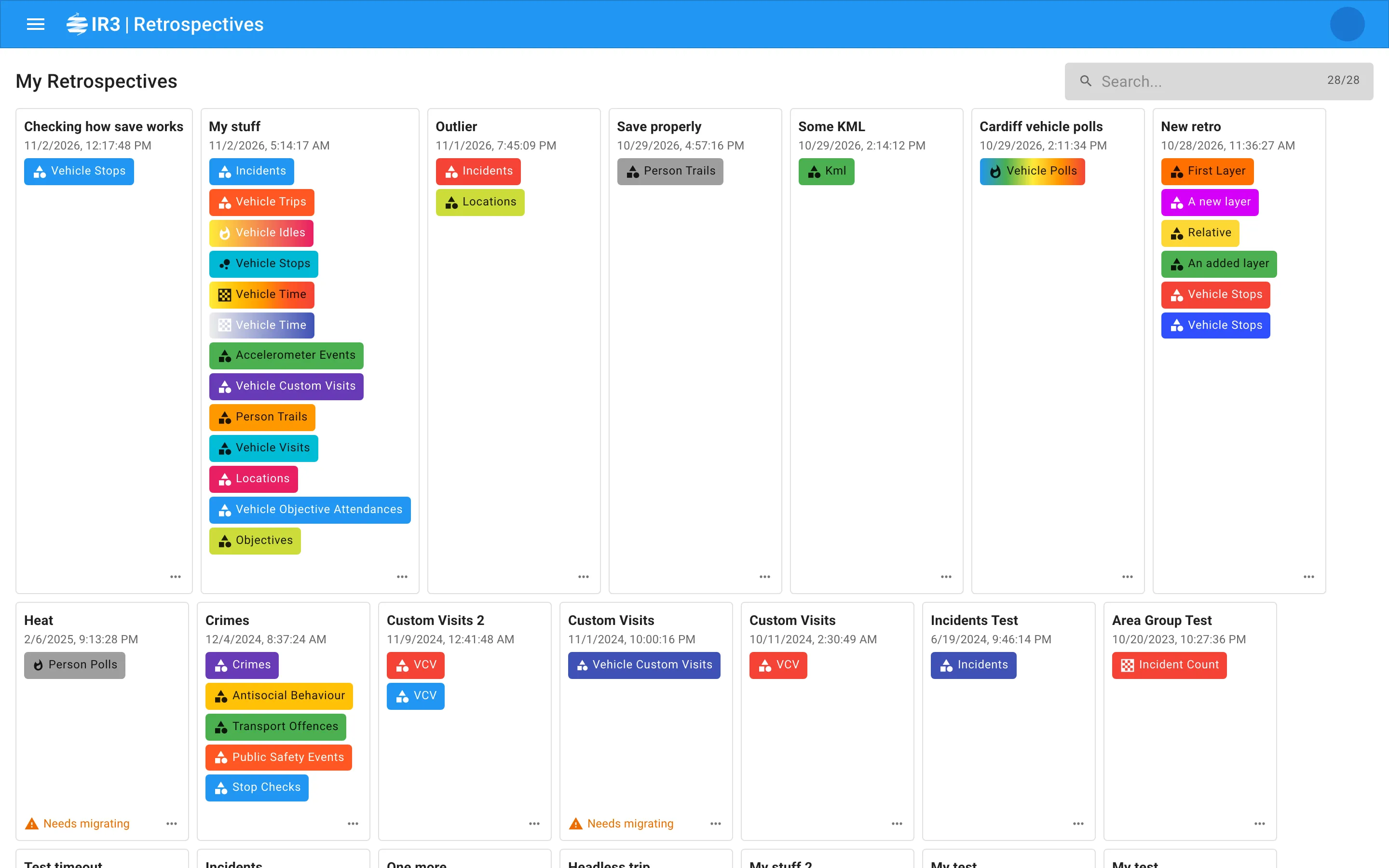
Type in the search box at the top right to show only retrospectives whose title contains your text. The count beside the box shows how many match, out of how many you have.
Open a retrospective
Section titled “Open a retrospective”Select anywhere on its card. If the card says Needs migrating, see Migrate an older retrospective first.
Create a retrospective
Section titled “Create a retrospective”- Select the dashed New card at the end of the list.
- Add at least one layer. See Layers.
- Give it a title. See The title.
- Select Save in the app bar.
Delete a retrospective
Section titled “Delete a retrospective”- On the retrospective’s card, select More options (…).
- Select Delete.
Migrate an older retrospective
Section titled “Migrate an older retrospective”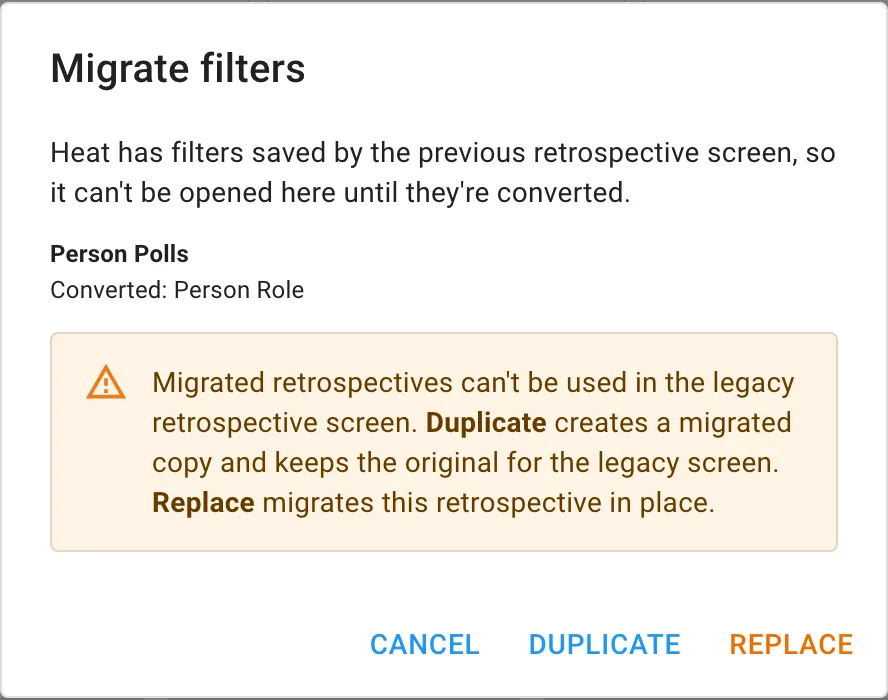
Filters in retrospectives saved by the previous version are stored differently. Before you can open such a retrospective, its filters must be converted. These cards show Needs migrating.
- Select the card. The Migrate filters dialog opens.
- Check what will happen to each layer:
- Converted lists the filters that carry over.
- Empty rules, which never filtered anything, are removed.
- Filters shown in red can’t be represented in the new filters and will be removed.
- Choose one:
- Duplicate creates a converted copy called “title (migrated)” and leaves the original as it was.
- Replace converts the retrospective itself.
- Cancel leaves it alone.
If you follow a link to a retrospective that still needs migrating, a message says so and a Retrospectives button takes you back to the list.

IR3 is made by Lightbulb Analytics Ltd. © 2026