
Layers
A retrospective is made of layers. Each layer draws one kind of data, such as vehicle trips or incidents, on the map. The Layers list in the panel shows all of them.
Each layer card shows:
- the layer’s type icon in its colours;
- its label (or Untitled);
- its source (or Select a source…);
- how many items it found.
If a layer’s settings aren’t complete, its card is outlined in red and says what’s missing.
Add a layer
Section titled “Add a layer”- Select Add under the list of layers. A new layer opens at its Settings.
- Choose its type and source, then fill in the rest of its settings. See Layer settings.
- Select Refresh to load its data.
Open a layer
Section titled “Open a layer”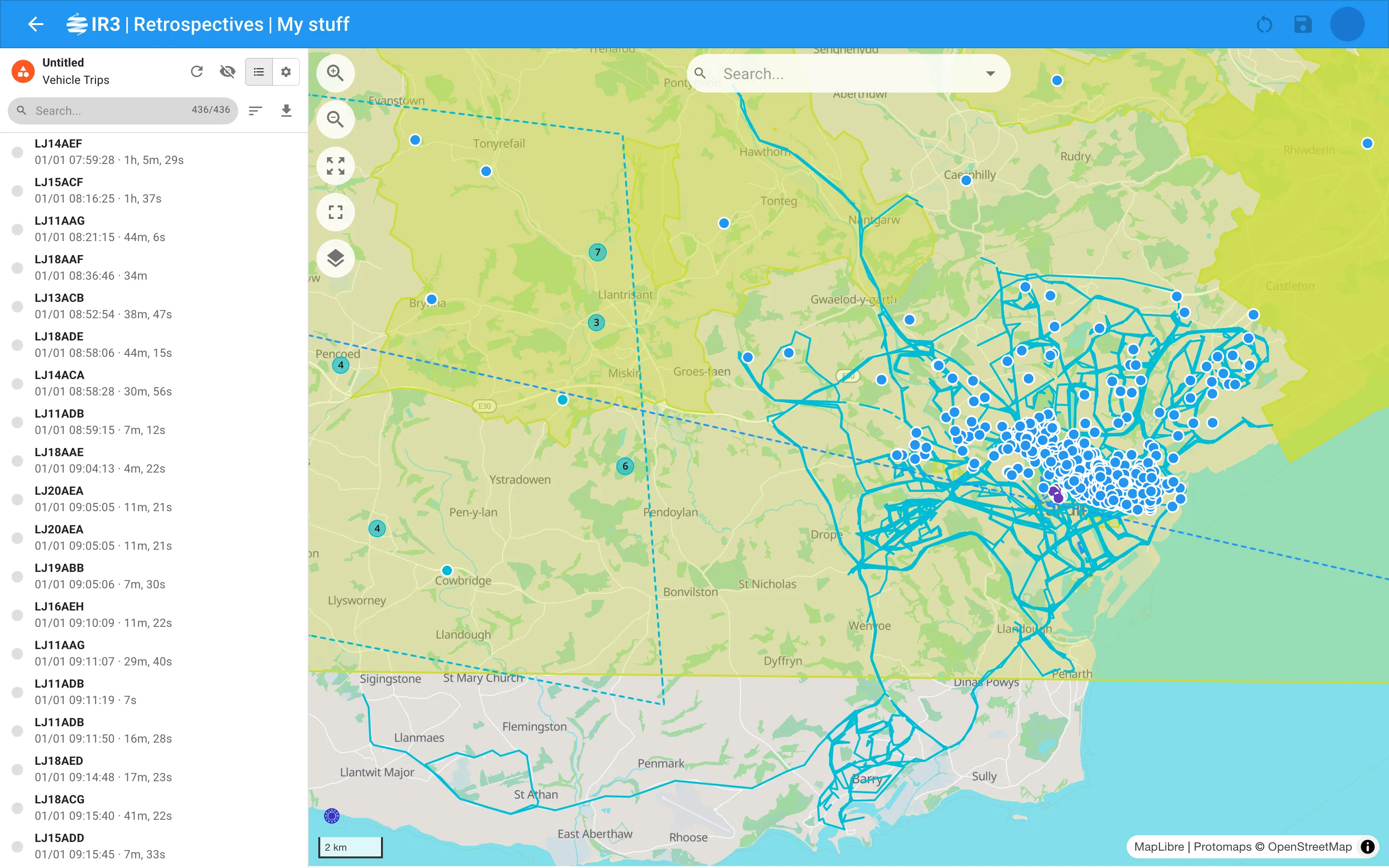
Select a layer’s card. The layer’s header shows its type, label and source, then these buttons:
- Refresh;
- Show layer / Hide layer;
- Items, to list what it found;
- Settings, to change it.
Reorder layers
Section titled “Reorder layers”To move a layer up or down the list, drag its card by the handle on its left.
The first layer in the list is drawn on top, and the layers below it are drawn underneath in order. Layer boundaries are always drawn above the layers.
Show and hide a layer
Section titled “Show and hide a layer”Select the eye button on a layer’s card or in its header. Hiding a layer also hides its boundary, and its items stop showing popups on the map. Whether a layer is shown is saved with the retrospective.
Refresh a layer
Section titled “Refresh a layer”When you open a retrospective, its saved layers load by themselves. A layer you’ve just added loads only when you select Refresh.
Changes to a layer’s settings don’t apply straight away. The map and item list keep showing the results from the last load. Meanwhile, the Refresh button in the layer’s header pulses, and its tooltip reads Refresh to apply changes. Select it to load the layer again with its new settings.
There are two exceptions. These changes apply at once, without a refresh:
- colours, opacity and the other style settings;
- the boundary outline;
- hiding untouched areas;
- a file layer’s title and subtitle fields.
Refresh spins while the layer loads. You can also select it when nothing has changed, to load the layer’s data again.
Duplicate a layer
Section titled “Duplicate a layer”On the layer’s card, select the ⋮ menu, then Duplicate. The copy is added at the end of the list with the same settings.
Delete a layer
Section titled “Delete a layer”On the layer’s card, select the ⋮ menu, then Delete.

IR3 is made by Lightbulb Analytics Ltd. © 2026