
Searching, filtering and sorting
Each tab has one box at the top of its list, labelled Search or filter…. You can type into it to search, or pick values from it to filter by. Searches and filters apply to the tab you’re on, and each tab keeps its own.
The count to the right of the box, such as 24/1097, shows how many items match out of how many there are.
Search
Section titled “Search”Type into the box and the list narrows as you type. The search isn’t case-sensitive and matches anything held about an item, not only what its row shows. For example, typing a role or a make of vehicle finds the vehicles with it.
Click the × in the box to clear the search.
Filter by a value
Section titled “Filter by a value”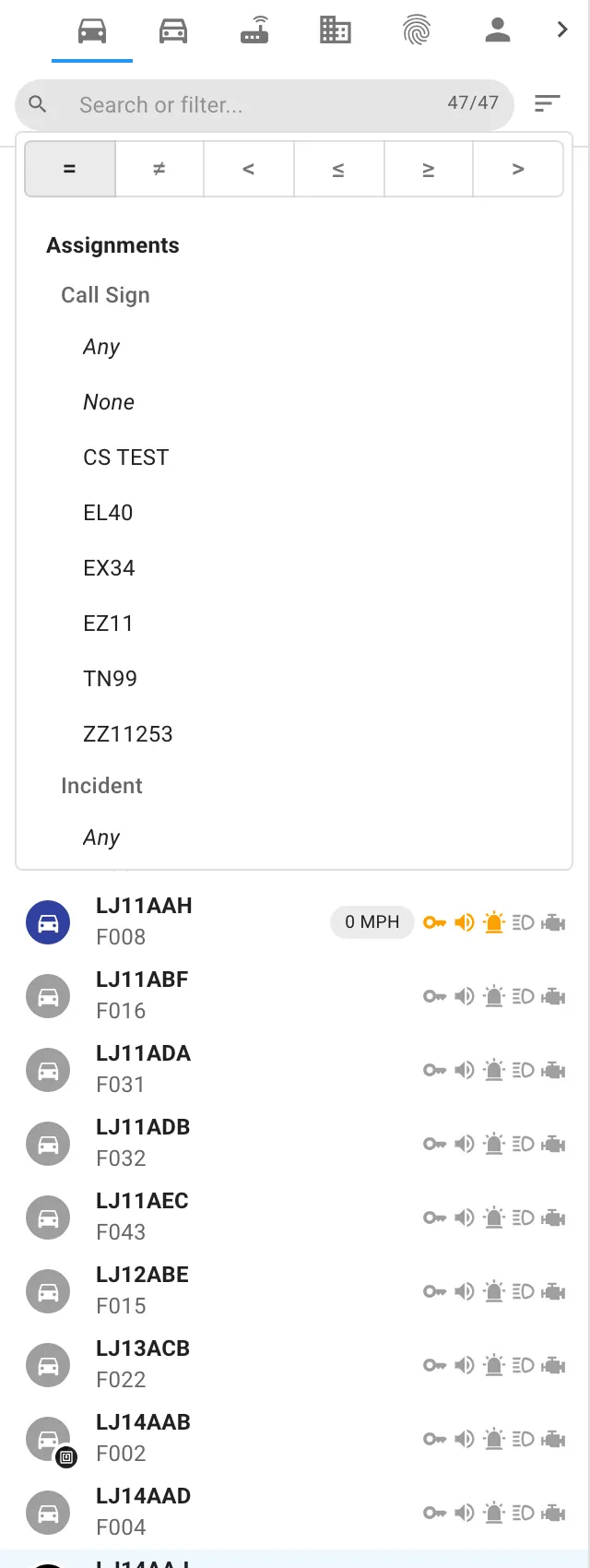
As you type, the box suggests values to filter by, grouped under headings for what they describe, such as Vehicle, Tracker, Driver or Assignments.
- Click in the box and type part of what you want, such as a role or a call sign.
- Pick the value from the suggestions.
- A chip appears under the box, labelled with the field and value. The list shows only matching items, and the map fades the rest.
To remove a filter, click the × on its chip.
The fields you can filter on depend on the tab. For vehicles, for example, they include registration, fleet number, role, home station, make, model, colour, type, ignition, warning equipment, speeding, equipment, the driver’s name, collar number and role, call sign and incident. Your organisation can choose to hide some fields.
Conditions
Section titled “Conditions”A row of buttons along the top of the suggestions sets how the next value you pick is used:
| Button | Meaning |
|---|---|
| = | Is. Show items with this value. |
| ≠ | Is not. Hide items with this value. |
| < | Less than |
| ≤ | At most |
| ≥ | At least |
| > | More than |
With = or ≠ chosen, you pick values from the list. A chip for an excluded value shows ≠ at its start.
Compare with a number or a time
Section titled “Compare with a number or a time”Some fields can be compared with a value you enter, such as a vehicle’s speed, poll time or last ignition off, an incident’s grade or opened time, or a location’s number of people.
- Choose <, ≤, ≥ or > at the top of the suggestions.
- Pick the field, such as Speed.
- Enter the value in the box that appears below. For a speed, choose mph or km/h. For a time, enter a date and time.
- Click Done (the tick) to add it, or Cancel to leave it.
To find a range, add two comparisons, for example speed more than 50 mph and speed less than 60 mph.
Any and None
Section titled “Any and None”With = chosen, the first suggestions for many fields, in italics, are Any and None. Any shows items with some value for that field, and None shows items without one, such as vehicles with no driver. For groups, there’s an Any and None for each type of group, so you can find people who aren’t in any sector, for example.
How filters combine
Section titled “How filters combine”- Values picked for the same field match any of them. Filtering on two roles shows items with either role.
- Filters on different fields must all match. Filtering on a role and a home station shows items with both.
- Excluded values (≠) and comparisons must all be met too.
Suggestions narrow as you go
Section titled “Suggestions narrow as you go”Once you’ve set some filters, each field only suggests values that items matching your other filters actually have. For example, after filtering on a make, the model suggestions only include that make’s models.
Call signs follow the people and vehicle filters
Section titled “Call signs follow the people and vehicle filters”The Call Signs tab only lists call signs with at least one person or vehicle that your People and Vehicles filters and searches show.
Sort a list
Section titled “Sort a list”- Click Sort (the lines icon) to the right of the search box.
- Pick what to sort by. The options are grouped under headings, as the filters are, with any categories your organisation uses (such as division) under Categories.
- To reverse the order, pick the same option again. An arrow beside it shows whether the order is ascending or descending.
When you sort by something the rows don’t already show, each row shows its value as its second line. See What the list is sorted by.
Your organisation can choose to hide some sort options.
Show filtered out
Section titled “Show filtered out”Items that don’t match your search and filters are taken out of the list. On the map, they’re drawn faded beneath everything else, so you can still see what’s around. Faded items can’t be hovered or clicked.
To take them off the map altogether, turn off Show filtered out in the Settings tab. It’s on to begin with.

IR3 is made by Lightbulb Analytics Ltd. © 2026