
Views
A view saves how you’ve set up the Live screen so you can get back to it in one step, for example “Response vehicles on blue lights” or “Night shift, North sector”. Views are in the Settings tab (the cog at the end of the sidebar’s tabs). Changed
What a view holds
Section titled “What a view holds”A view saves:
- every tab’s filters, including exclusions, comparisons and Any or None
- how every tab’s list is sorted
- which types are hidden on the map
- whether Show stale and Show filtered out are on
A view doesn’t save your search text, and loading one doesn’t change which tab you’re on.
Under the View box, a summary shows what the view would save, tab by tab: each tab’s filter chips, how it’s sorted if that isn’t its usual order, and whether it’s Hidden on the map. If no filters are set, it says No filters set. You can remove a filter from here by clicking the × on its chip. New
Choose a view
Section titled “Choose a view”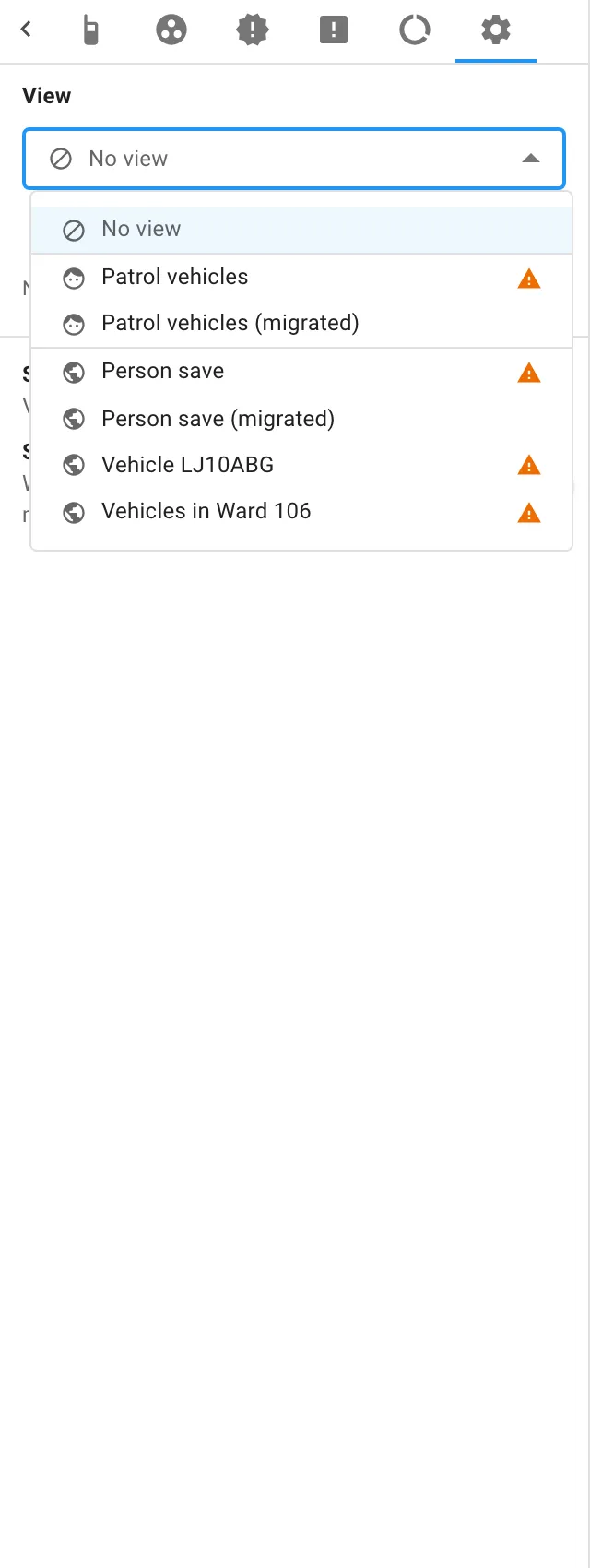
Open the View box and pick a view. The list shows your own views first, each marked with a face icon, then global views, marked with a globe. Choose No view to stop using a view while keeping everything it set.
Save a new view
Section titled “Save a new view”- Set up the filters, sorts and map the way you want.
- Make sure the View box says No view.
- Click Save as a new view (the disk icon).
- Enter a Title. If you’re allowed to, turn on Global to make the view available to all users.
- Click Save.
Save a copy of a view as a new one
Section titled “Save a copy of a view as a new one”There isn’t a separate “save as” button. Instead:
- Load the view and change it as you want.
- Choose No view in the View box. Your changes stay on the screen.
- Click Save as a new view and give it a new title.
Save changes to a view
Section titled “Save changes to a view”When you change anything a view holds, its Save button becomes available. Click it to save the changes over the view. You can only save over your own views, or global views if you’re allowed to edit them.
Rename a view
Section titled “Rename a view”- Choose the view.
- Click Rename (the pencil).
- Change the Title, and the Global setting if you’re allowed to.
- Click Rename.
Renaming changes only the title and whether the view is global. It doesn’t save other changes you’ve made on the screen.
Delete a view
Section titled “Delete a view”Choose the view, click Delete (the bin), then confirm.
ChangedClick Reset (the circular arrow) to undo changes:
- With a view chosen, Reset to this view puts back what the view saved.
- With No view, Reset everything clears every tab’s filters, puts every list back in its usual order and shows every type on the map again.
Unsaved changes
Section titled “Unsaved changes”If you choose another view or click Reset when you have changes that aren’t saved, IR3 asks Discard changes? first. Click Discard to go ahead, or cancel to keep your changes so you can save them.
Who can save views
Section titled “Who can save views”Your organisation decides who can save views and who can edit global ones.
- If you can’t save views, you can still choose any view and use Reset, but the save, rename and delete buttons aren’t shown.
- The Global switch is only shown to people who can edit global views.
Views saved before this version
Section titled “Views saved before this version”Views saved on the previous version of the Live screen show a warning icon (Needs migrating) in the View list. Their filters need converting before you can use them.
When you choose one, the Migrate view window lists:
- the filters it converted
- any empty filter rules it removed, which never filtered anything
- any filters it removed because the new filters can’t represent them
Then choose one of these:
- Duplicate saves a converted copy as your own view, titled with “(migrated)” at the end, and leaves the original unchanged.
- Replace converts the view itself. This is only offered if you’re allowed to change that view.
If you can’t save views, the window explains that someone who can will need to migrate it.

IR3 is made by Lightbulb Analytics Ltd. © 2026