
Detail panels
Click a row in a list, or an item on the map, to open its detail panel. It takes the place of the list in the sidebar and updates as the item changes. To go back to the list, use the back button in the app bar, or click an empty part of the map. The list is just as you left it.
Each item has its own web address, so you can bookmark it or send a link to a colleague.
If an item isn’t live any more, for example an incident that has closed, the panel says so, for example Not found among the live incidents, or no longer shown.
The top of the panel
Section titled “The top of the panel”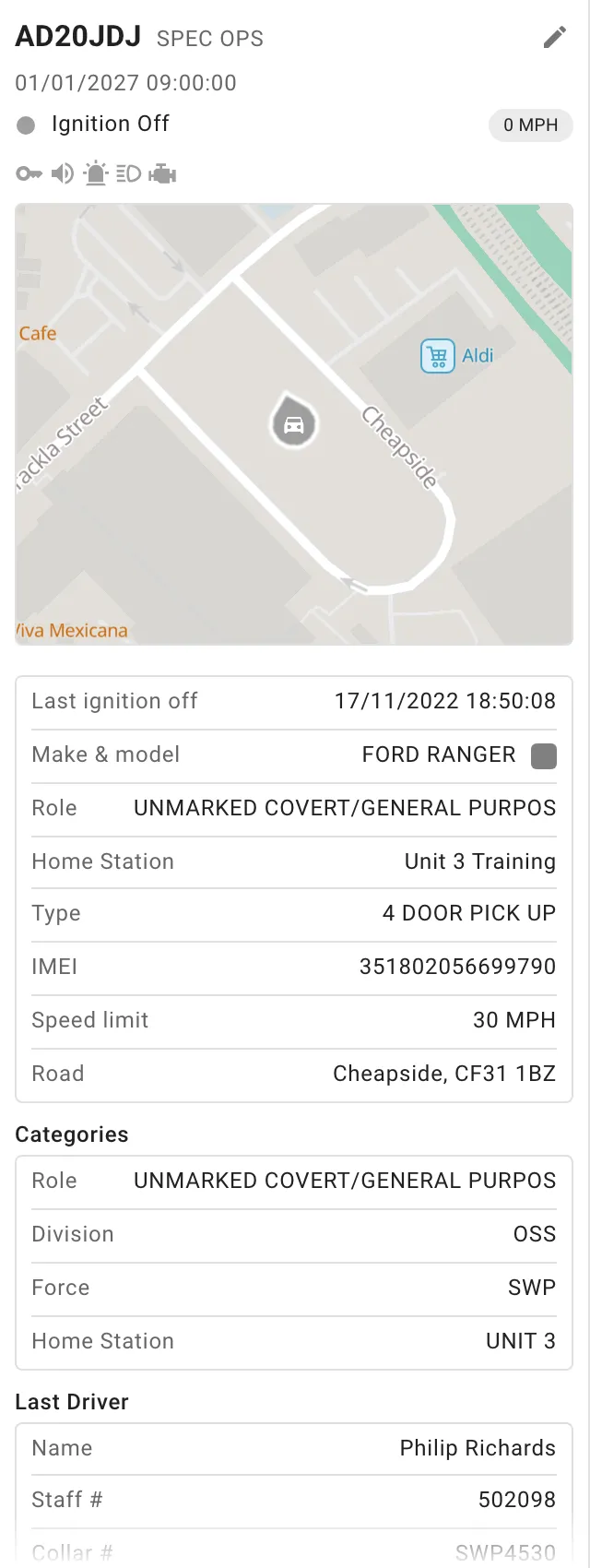
The top of the panel stays in place while the details below it scroll. It shows:
- the item’s name, such as a registration with its fleet number beside it, or a person’s name with their collar number
- when it last reported (or, for objectives and scenes, the dates or times it runs between), with a grey Stale label if it hasn’t reported recently
- its status, with its speed for vehicles
- equipment icons for vehicles, trackers and alerts
- a small map of where it is
For vehicles, people, trackers, radios, objectives and locations, click Edit (the pencil beside the name) to open the item’s own page and change it. The page opens in a new browser tab, so the Live screen stays as it is. Changed
Claim an alert
Section titled “Claim an alert”When your organisation uses alert notifications, alerts and events have a Claim button beside their name. Click it to show colleagues you’re dealing with the alert. Once someone has claimed it, the button shows Claimed and the panel shows who claimed it under Claimed by.
The panel’s map
Section titled “The panel’s map”The small map follows the item, keeping it in the middle as it moves. Where there’s more than one thing to keep track of, it keeps them all in view:
- an incident, with the people and vehicles attached to it
- a call sign’s people and vehicles
- an event, with the route the vehicle took
For locations and objectives, chips over the map count the people and vehicles in them. For scenes, a chip shows the attendance.
If you pan the small map, it stops following. Click Follow (or Follow them all) in its corner to start following again.
What each panel shows
Section titled “What each panel shows”Vehicles
Section titled “Vehicles”- Any speed rules it’s breaking, last ignition off, odometer, make and model with a swatch of its colour or livery, role, home station, type, equipment, IMEI, and the road it’s on with its speed limit.
- Categories, such as division.
- Driver, or Last Driver if no one’s driving now. Click the driver’s name to open them.
- The driver ID card, when the card swiped isn’t linked to a person.
- Assignments: call sign and its status, incident, when it was assigned, and when it attended. Until it attends, an ETA shows when it’s expected to arrive, depending on your organisation’s set-up. Click the call sign or incident to open it.
- Locations it’s in.
People
Section titled “People”- Staff number, rank, role, home station, radio SSI, emergency button and driver IDs.
- Categories and Skills.
- Assignments, with links to the call sign and incident.
- Locations they’re in.
Incidents
Section titled “Incidents”- The header shows the reference, date, grade and status. If vehicles are on their way, it shows First ETA with the earliest expected arrival.
- Code, type, response category and description.
- Attached: the vehicles and people attached to the incident, vehicles first, those that have arrived before those on their way, and the quickest first. Each shows Attended, ETA and a time, or Assigned. Click one to open it.
- Timeline of the incident’s times, with when each person was assigned and arrived.
ETAs are worked out from each vehicle’s route and updated regularly, depending on your organisation’s set-up.
Objectives
Section titled “Objectives”- What the objective asks for, under its dates, with its occurrence number and identifier.
- Its other details, who or which groups it applies to, its microbeats, description and weekly schedule.
- People and Vehicles in it. Click one to open it.
Locations
Section titled “Locations”- Subtype, district, and the Groups & Areas it’s in.
- People and Vehicles in it.
Scenes
Section titled “Scenes”- The incident (click it to open the incident), occurrence number, and the Groups & Areas it’s for.
- The people attending.
Call signs
Section titled “Call signs”- Status, status category, category and incident.
- The People and Vehicles on it.
Alerts and events
Section titled “Alerts and events”- Who claimed it, and the road and speed at the time.
- For events, a chart of the forces recorded and a chart of the maximum forces.
- Driver, with their name linking to them where they’re shown.
- Vehicle, with its registration linking to the vehicle.
- Locations it happened in.
When the event for an alert arrives, it takes the alert’s place. If you have the alert open, or follow a link to it from a notification, the panel switches to the event.
Trackers and radios
Section titled “Trackers and radios”- Trackers: IMEI, IMSI, type, last ignition off and first contact.
- Radios: SSI, type and first contact.
- Locations they’re in.
External vehicles and people
Section titled “External vehicles and people”- External vehicles: make and model, role, IMEI, road, the driver’s ID and force, and Assignments.
- External people: rank, role, radio SSI, emergency button and Assignments.

IR3 is made by Lightbulb Analytics Ltd. © 2026